
The Universe Finder Utility Software is required to configure a Static IP. 📥Click here to Download the Latest version of Universe Finder
The Universe Finder Utility Software discovers devices via UDP broadcast, with either DHCP enabled, or a Static IP assigned on the same local network. If the device has a Static IP configured for a different network and isn't relocated or found, you can try assigning a static IP address to your PC on the same subnet to relocate it. If the device’s IP address or subnet is unknown, reset the controller’s Ethernet adapter back to DHCP mode to allow it to be rediscovered automatically. Please contact the Network Administrator for Static IP Information.
Configuring a Static IP for a Panel / Controller using a Direct Ethernet Connection
If DHCP is unavailable and a static IP address is required, follow this Direct Connection method before proceeding to Step 2 below.
Important: A laptop and an Ethernet cable are required. Universe Finder Software does not automatically discover controllers across VLANs.
Connect the Ethernet port on the controller directly to your laptop’s Ethernet port using a cat5 Ethernet cable.
Launch the Universe Finder Utility software.
Select Controllers, then click Discover.
The controller should appear with an APIPA (Automatic Private IP Addressing) address, such as 169.254.x.x (e.g., 169.254.0.1).
Proceed to Step 2 below.
Configuring a Static IP for a Panel / Controller (On a DHCP-Enabled Network🌐)
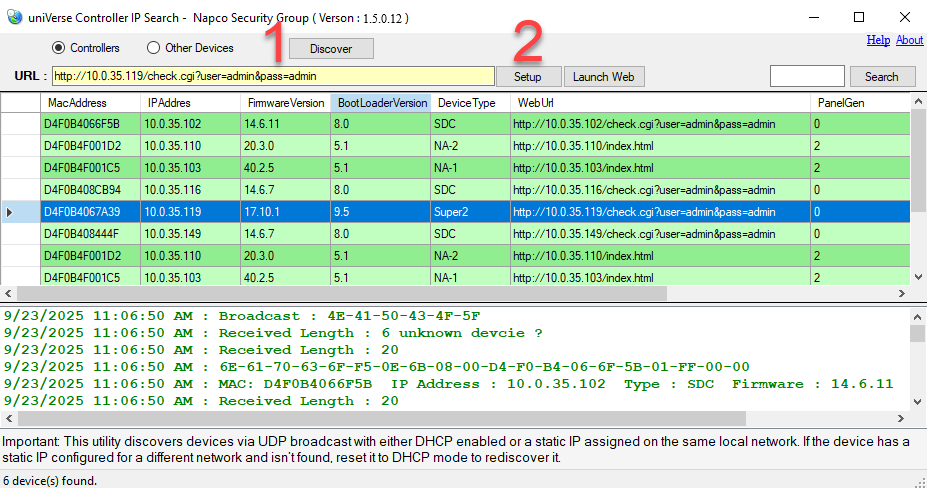
1. Using an Ethernet cable, connect the Panel/Controller’s Ethernet adapter to the customer’s network and power it on. Wait about 2 minutes for the device to obtain a DHCP IP address, then connect your PC to the same local network using an Ethernet cable. In the Universe Finder Utility Software, select Controllers then press Discover to locate your Panel / Controller on the same local network. (If DHCP is not available follow the Direct Connection Method above first)
2. Select your device from the list and click Setup (The device name should display the model number or name of the Controller).
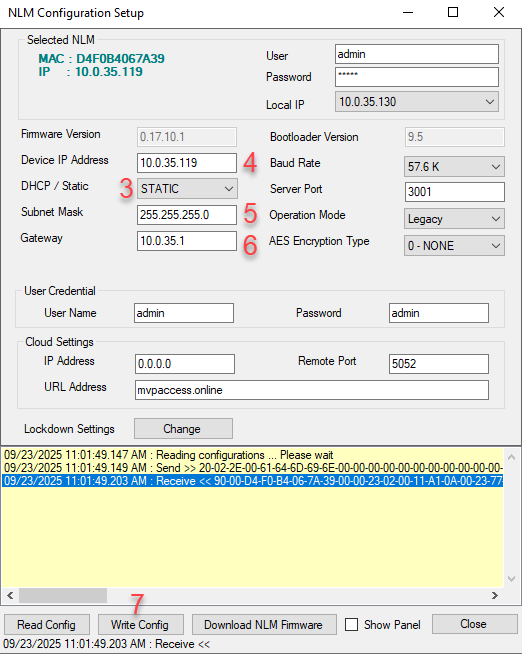
3. Under DHCP / Static change it to STATIC.
4. Enter the Device IP Address.
5. Enter the Subnet Mask.
6. Enter the Gateway IP Address.
7. Press Write Config.
Static IP Note: If the device has a static IP address on a different network and is not found or relocated, allow Universe Finder to time out (about 1 minute). You can then try assigning a static IP address to your PC on the same subnet to help locate the device.
To do this:
Open your computer’s Network Settings.
Go to Change Adapter Options (or Network and Sharing Center > Change adapter settings).
Right-click your Ethernet connection and select Properties.
Double-click Internet Protocol Version 4 (TCP/IPv4).
Choose Use the following IP address, then enter an IP within the same subnet as what was assigned. (i.e. IP Address: 192.168.x.x, Subnet Mask: 255.x.x.x., Gateway 192.168.x.1
(Tip: The IP you choose should match the subnet the controller was configured too and it should not be the same IP Address. If you're unsure, skip this step and reset the controller Ethernet Adaptor back to DHCP.)
If the IP address or subnet is unknown, reset the controller’s Ethernet adapter to DHCP mode so it can be rediscovered automatically.
Advanced Programming (Optional): Configuring a Static IP for a Panel / Controller using "Launch Web"
IMPORTANT: Some controllers support configuration changes via a web-based GUI. The Launch Web button is intended only for advanced users and is used exclusively with the following models:
NA-1
NA-2
CA-2 / CA-4
Older CICP2100 / CICP2100S units running firmware version 12.6.8 or earlier
1. Select Controllers then press Discover to locate your Panel / Controller on the same local network.
2. Select your supported device from the list and click "Launch Web" (The device name should display the model number or name of the Controller).
3. When prompted for a username and password enter admin for both.