The Universe Finder Utility Software is required to update firmware. 📥Click here to Download the Latest version of Universe Finder
The latest version of the uniVerse Finder Utility now supports panel firmware updates for Continental Access Controllers "only" (Napco Access Panels are not supported). Previously, the software was limited to updating only updating NLM Ethernet Firmware, but with this version, it can now also update panel firmware directly. Follow the instructions below to update Continental Access Controller Panel Firmware:
For Continental Access Controllers Only:
Important:
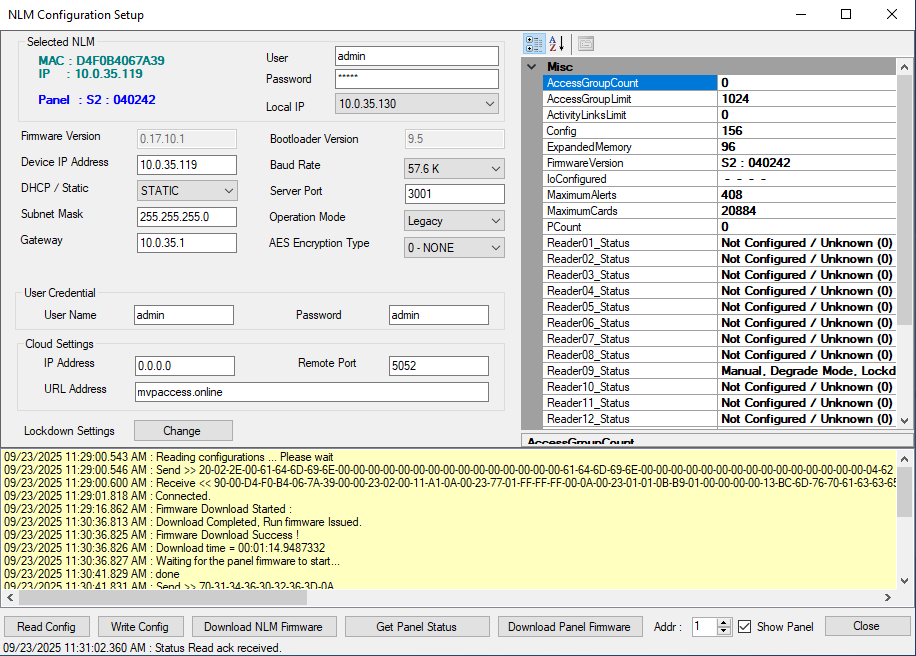
1. Using an Ethernet cable, connect the Panel/Controller’s Ethernet adapter to the customer’s network and power it on. Wait about 2 minutes for the device to obtain a DHCP IP address, then connect your PC to the same local network using an Ethernet cable. Select Controllers then press Discover to locate your Ethernet Network Adapter on the same local network.
2. Select your device from the list and click Setup (The device name should display the model number or name of the Controller).
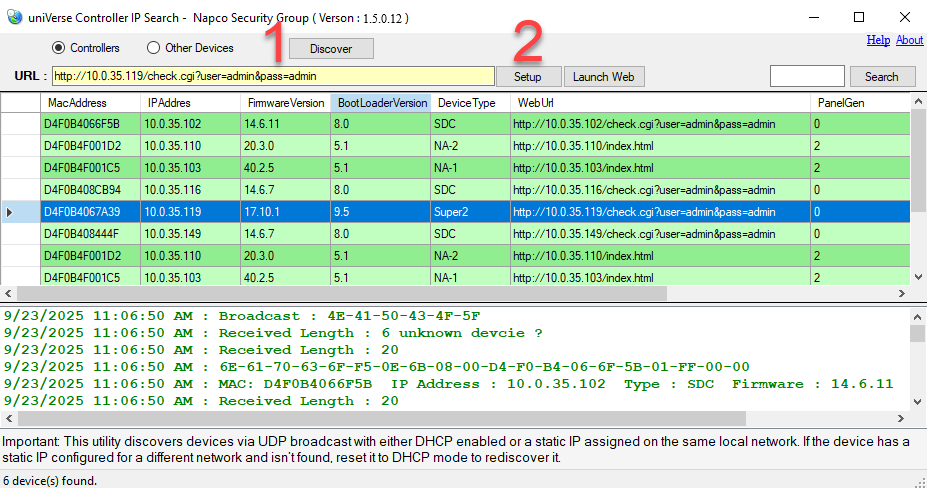
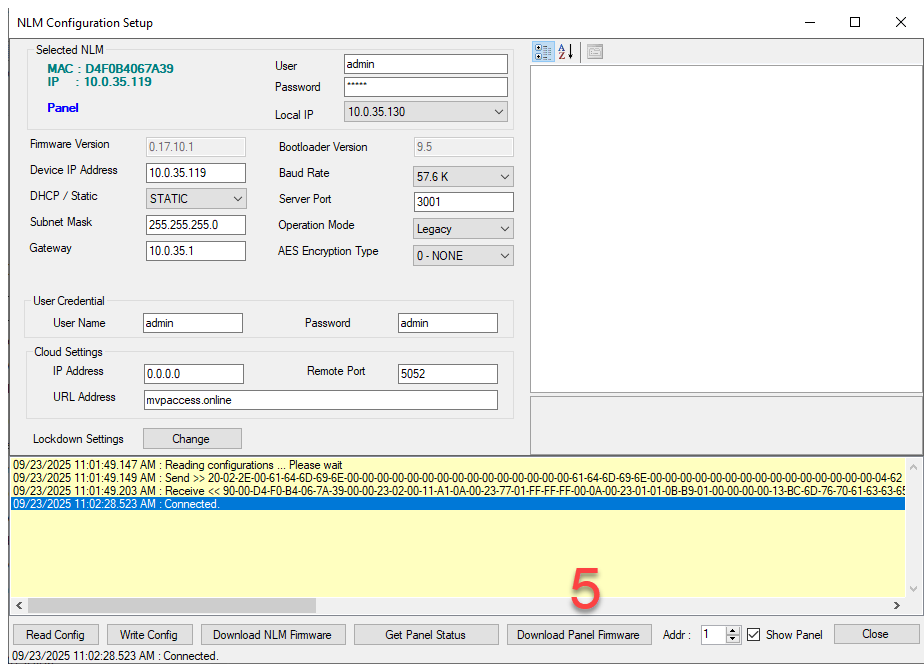
3. Click "Show Panel."
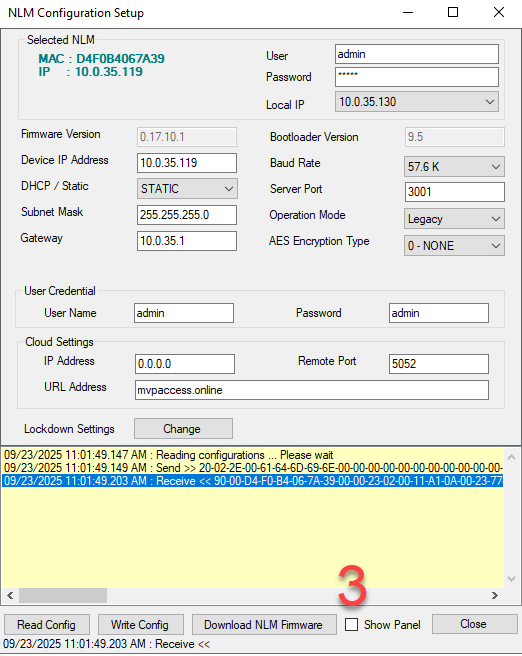
4. Verify that the Controller Panel address matches the corresponding "Addr:" field. This value must exactly match the controller’s assigned address.
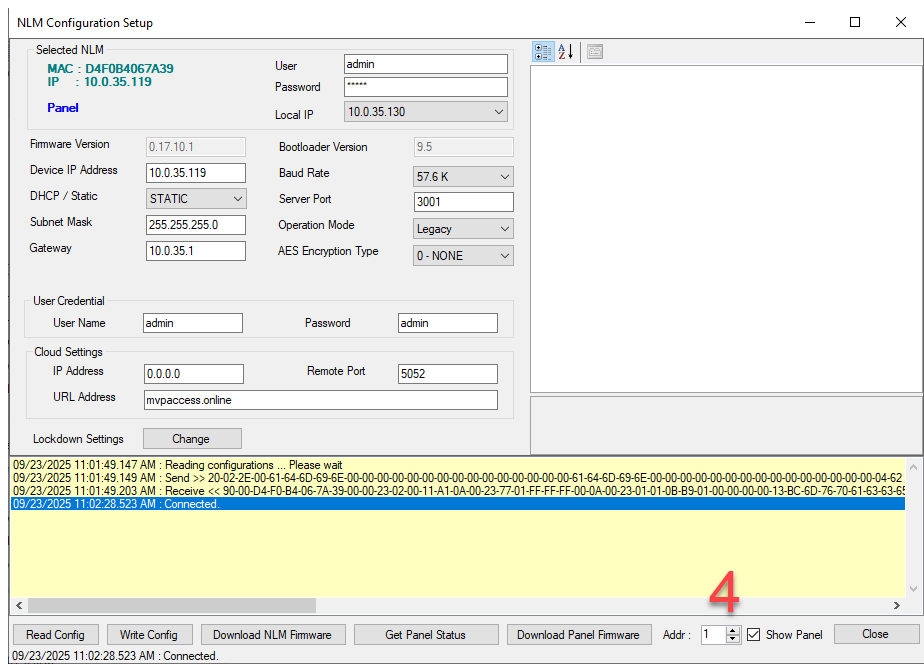
5. Click "Download Panel Firmware", then navigate to the Controller Panel Firmware folder and select the appropriate panel firmware file for your specific controller model.
6. The firmware download will begin, and you'll see "Sending Firmware Packet No:" displayed to indicate the progress.
7. Once completed successfully, the Panel Status will display the latest Panel Firmware in the Misc. table, under the Firmware Version section.