
The Universe Finder Utility Software is required to update firmware. 📥Click here to Download the Latest version of Universe Finder
CICP2100/CICP2100S - Firmware must be 14.6.11 or greater to support MVP. (If your controller is on older 12.6.8, first update to 12.7.8, then proceed to 14.6.11—download v12.7.8 firmware and instructions here)
CICP1300- Firmware must be 17.10.1 or greater to support MVP
CICP2800- Firmware must be 17.10.1 or greater to support MVP
⚠️The Ethernet adapter firmware included with the Universe Finder Utility Software is designed to update your Continental Access Controller Ethernet adapters for compatibility with MVP Access Cloud. Once the firmware on the Ethernet adapters are updated, you can easily adjust the jumpers to enable MVP Cloud, as described in I. Setting the Continental Controller / Ethernet Adapter Jumpers to Cloud. If you're using CA4K On-Premises Software, firmware updates are optional and are only necessary if you plan to transition to MVP Access.
1. Using an Ethernet cable, connect the Panel/Controller’s Ethernet adapter to the customer’s network and power it on. Wait about 2 minutes for the device to obtain a DHCP IP address, then connect your PC to the same local network using an Ethernet cable.
2. Select Controllers then press Discover to locate your Panel / Controller on the same local network. This will locate all Controllers connected to the network
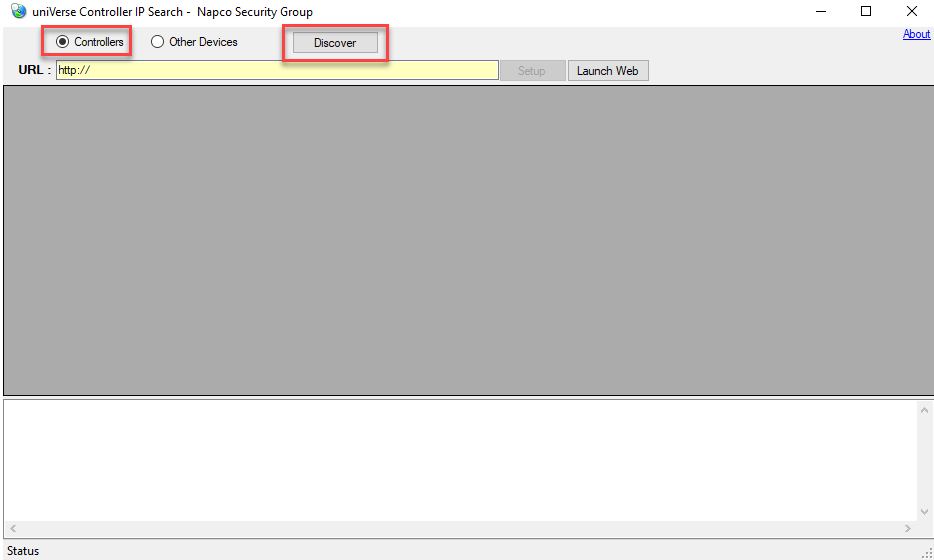
4. Scan for the controllers MAC Address from the discovered list. (The MAC Address is located on a sticker on the controller or ethernet adapter). ⚙️ At this step you can verify the current firmware version. Proceed if necessary.
💡Reminder: If your CICP2100/CICP2100S is on older 12.6.8, first update to 12.7.8, then proceed to 14.6.11—download v12.7.8 firmware and instructions here
5. Select the device and click Setup. A popup window NLM Configuration Setup will display.
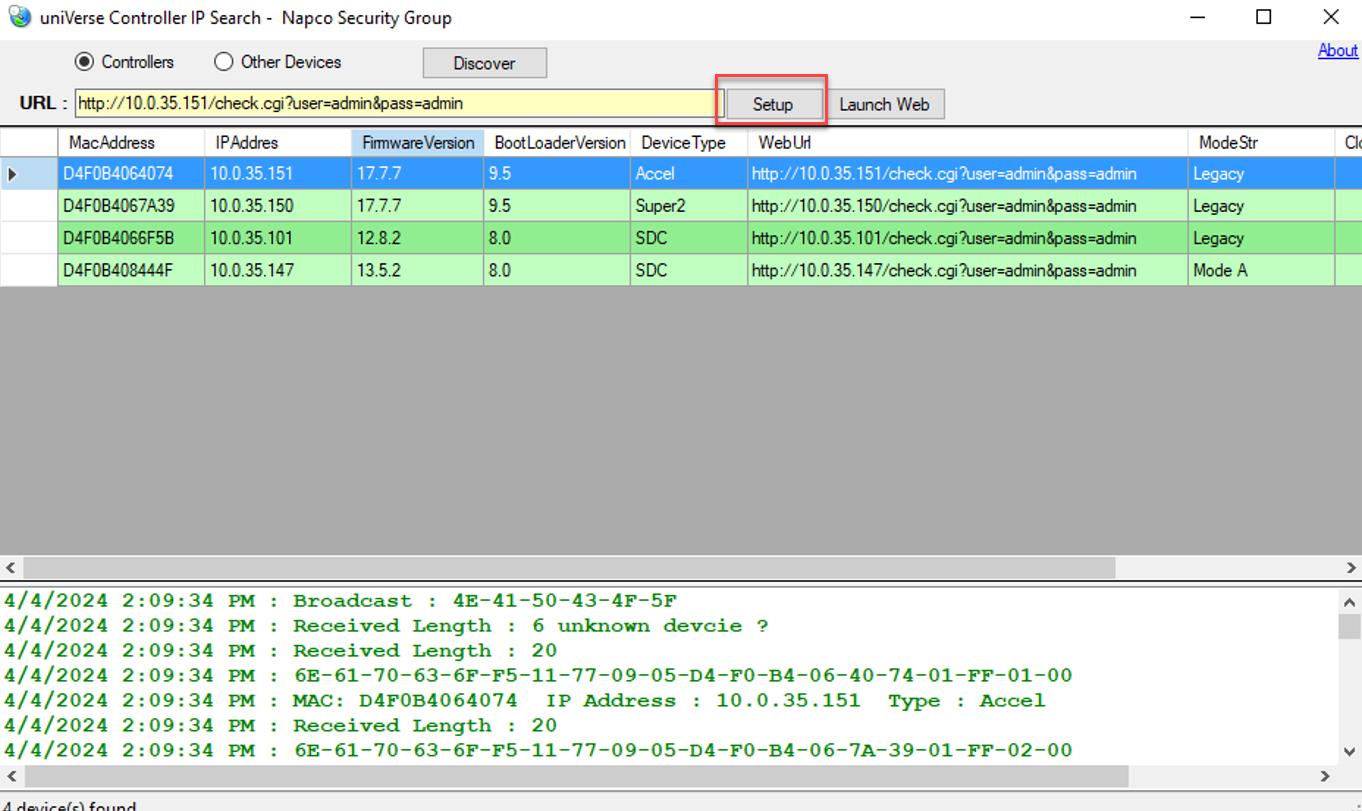
6. Click on “Download NLM Firmware.” Navigate to the uniVerse Finder Utility folder you downloaded and extracted. Select the "Firmware Folder," then select the MVP Access Cloud ethernet firmware for the specific Controller model # and click on the "Open" button to begin download.
Note: Before proceeding ensure that the Operation Mode is set to Legacy before updating.
Troubleshooting Tip: Before proceeding with the firmware update, ensure that the Operation Mode is set to Legacy. If the user switches to Mode A before initiating the update, the firmware will not install. To proceed, the user must first switch the mode back to Legacy and write config. Then proceed to update the firmware to the cloud version. Once the update is complete, the device will automatically switch to Mode A after moving the jumpers to cloud mode and pressing the controller’s reset button for 2–3 seconds.
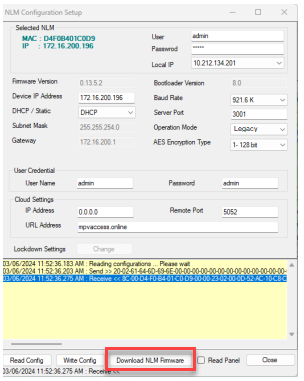

7. Once the cloud firmware download is completed, please wait about 30 seconds for the device to reboot. After the device reboots, it will automatically reconnect.
8. After reconnecting, configure the controller for cloud mode by installing the cloud mode jumper (s) as described under, I. Setting the Continental Controller / Ethernet Adapter Jumpers to Cloud, for your specific controller, then press and hold the Reset button for 3-5 seconds.