If you plan to migrate live data from CA4K to MVP Access, you must start with Step 1 below before moving on to Step 2.
If you're not migrating any data and just need to download information on migrating from factory or from CA4K to MVP Access, proceed directly to Step 2.
E-mail a copy of your caLiveConfiguration database to techsupport@napcosecurity.com, requesting a data review to initiate the migration process.
Our Migration Team will review your data and hardware, then provide a detailed report, which may include recommended hardware adjustments based on the findings
Once you’re ready to move forward, on the Napco Comnet Remote Services website:
Set up a new subscriber account.
Activate all required doors for the subscriber. (Ensure the correct number of doors have been purchased)
After the subscriber account is active, email us the go-ahead to migrate. Please include:
Your Company Name
Dealer Account Number
Subscriber Name
Subscriber Account Number
Once the migration is complete:
Update the MAC address under the Com Port for each controller.
Update the Panel/Lock section with the correct panel address. (It is recommended to set the address to #1 for all controllers)
Then, continue to Step 2 below for available setup options.
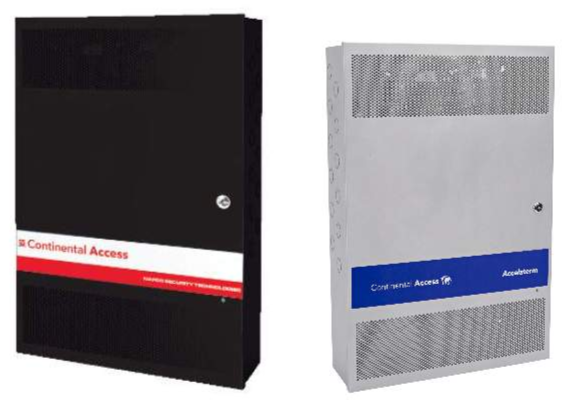
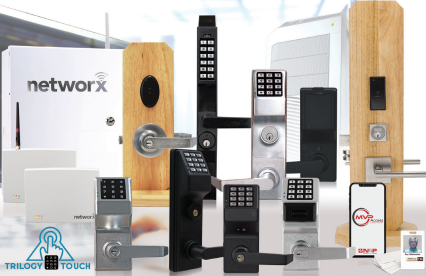
2. Depending on your hardware, click the appropriate Quick Start to download the available option (s) or refer to their respective Getting Started Guides (Getting Started - Continental Access Controllers / Getting Started - Wireless Locks-Net Panel.
Click Here to Download 👉 Wireless Locks / Netpanel - Migration to MVP Platforms Quick Start (Coming Soon!)
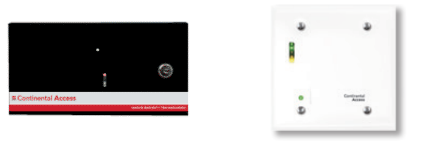
Click Here to Download 👉 CICP2100 / CICP2100S - Migration to MVP Access Quick Start (Coming Soon!)
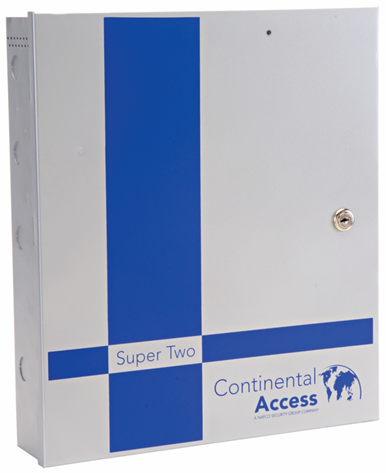
Migrating CICP1300 (Super 2) from Factory or from CA4K to MVP
Click Here to Download 👉 CICP1300 (Super2) - Migration to MVP Access Quick Start (Coming Soon!)
Migrating CICP2800 (Accelaterm) from Factory or from CA4K to MVP
Click Here to Download 👉 CICP2800 (Accelaterm) - Migration to MVP Access Quick Start (Coming Soon!)